Posted onEdited onWord count in article: 3.6kReading time ≈13 mins.
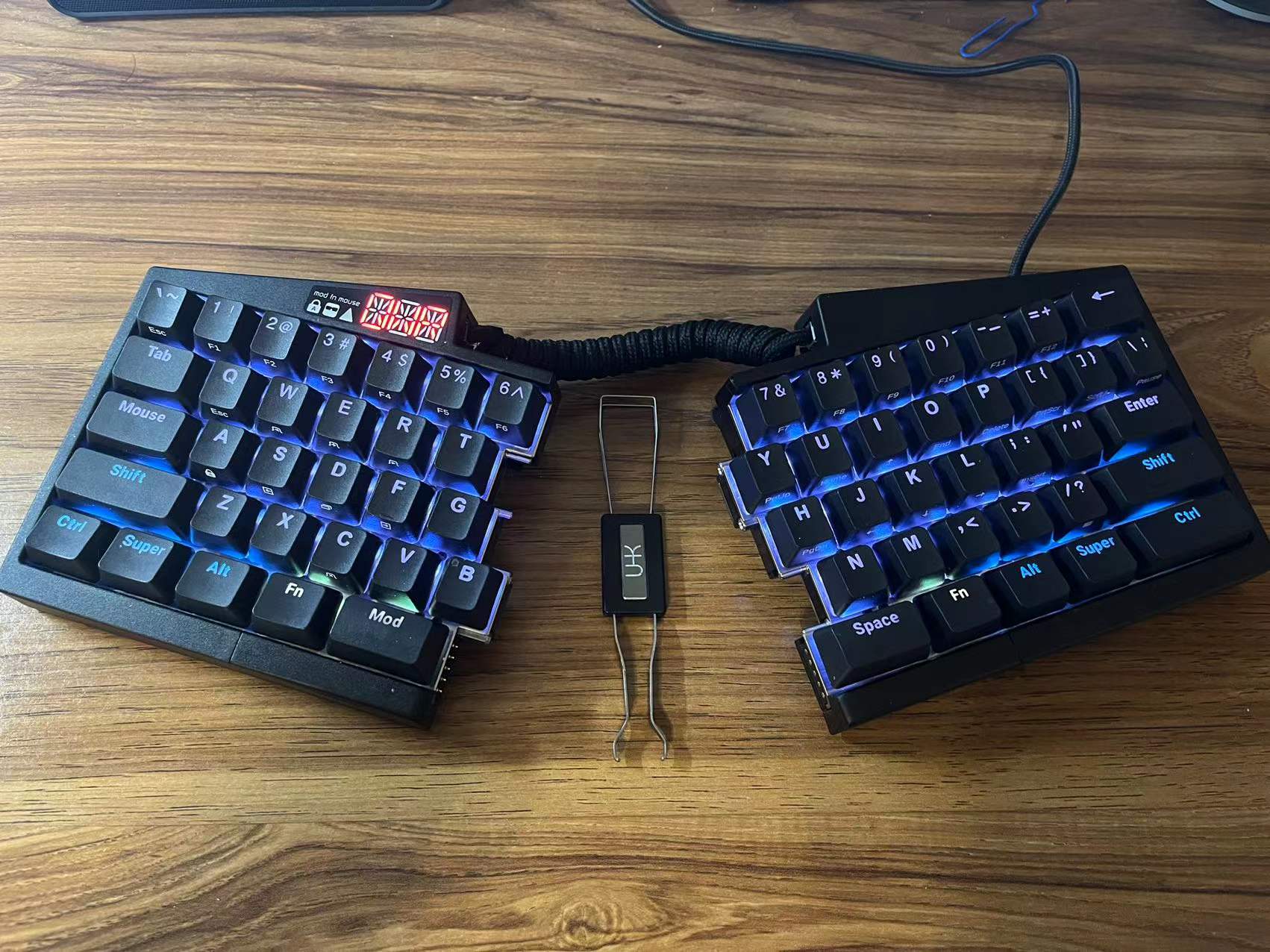
First impression of Ultimate Hacking Keyboard (UHK)
Happy new year and my UHK v2 keyboard just arrived at my front door on new year eve as a big surprise! If you are looking for the best re-programmable keyboard on the market, just stop searching and go to their UHK website to order one immediately because I have done tons of research on those re-programmable mechanical keyboards and it may take a year or two to arrive like the one I ordered last year in the middle of January 2020. If you are wondering why you never heard about this brand and the shipping time is ridiculous, the short answer is they have issues with their supply chain and currently they only produce 50 keyboards per month. That’s why I received them after almost a whole year even though they promised to deliver in two months at first but every time one week before the new deadlines they told you that some shit happens like our injection molding supplier has an organizational restructuring.
Many high end electronics like your iPhone are usually “Designed in USA,Manufactured in China”, but our two stubborn Hungarian engineers want to proudly put “Made in Hungary” on the back of their keyboards so they “successfully” manage to bring the supply chain back to Hungary or maybe Europe and manufacture everything from keycaps to IC boards locally. They are honest so when they say it they mean it. Unlike some luxury Italian shoe brands who manufacture shoes in China but lie to their consumers claiming their handmade products are “Made in Italy”. I’m always excited to try something exotic that is not “Made in China” but here is what happened and what they said on their blog:
We’re releasing five different products (four modules and the UHK 60 v2). Every product has its own set of manufacturing challenges, and ramping up production is quite challenging even for a single product.
We have quite a backlog, especially of modules that we need to fulfill. At the same time, the demand for our products has significantly increased recently.
Our on-site, on-demand manufacturing operation is excellent when it comes to a steady stream of orders but not ideal for combating large backlogs. As a result, it takes more time to catch up than if we had an OEM in China.
The electronics supply chain is a wreck due to Covid. We had to purchase several thousand ICs for the modules and the UHK 60 v2 for about ten times the price we usually pay, and we were told we’re lucky we could even get the parts.
Posted onEdited onWord count in article: 458Reading time ≈2 mins.
Set up development environment in Emacs
Emacs - The default editor for Lisp development and is written in Lisp itself including the configuration file. Install Emacs on Ubuntu is easy with sudo apt install emacs and for Windows you need to manually download the package for installation. It works on WSL too but only has the terminal version of Emacs.
SBCL - An implementation of Common Lisp by default in many editors and applications. Install SBCL with sudo apt install sbcl for Ubuntu.
Quicklisp - Some commonly used libraries and utility functions for the current Lisp implementation like SBCL.
Basic usage of Emacs
Open a file C-x C-f to find the file and C-x s to save the changes
C-x z to suspend the editor and type %emacs to bring it back to the front. C-x C-c to permanently shut down the editor.
M-x slime to open the Slime editor
C-x 2 or C-x 3 to split the window vertically or horizontally and C-x o to switch between panes.
C-c C-c to compile the program in Slime
C-f Move forward a character C-b Move backward a character
M-f Move forward a word M-b Move backward a word
C-n Move to next line C-p Move to previous line
C-a Move to beginning of line C-e Move to end of line
M-a Move back to beginning of sentence M-e Move forward to end of sentence
M-w to copy and C-y to paste
Switch back to Vim but still with Emacs enabled
Enough..my fingers are not designed to hit CTRL and ALT every five seconds and I need to switch back to my Vim heaven. Fortunately we have a Vim plugin Vlime to rescue us from the nightmare of learning and configuring a new editor with very steep learning curve. The only reasons I decide to try Emacs is that I want to learn Lisp language,which uses Emacs as its default IDE and I saw some weird professors using Emacs to send emails a long time ago.
Download the Vlime repository and start a vlime server sbcl --load <vlime repo>/lisp/start-vlime.lisp.
Type \cc to build a connection between editor and the backend server. Type \cs to list all current connections. Type \cd to close the current connection.
\ss to evaluate the expression and \i to enable the interactive mode so you can just hit or by default to see the result of evaluation.
\of to compile the program and generate a new file ending with .fasl.
Posted onEdited onWord count in article: 2.4kReading time ≈9 mins.
What is GPG and PGP?
PGP stands for Pretty Good Privacy and is the encryption software developed by Philip R. Zimmermann then commercialized by a security software company. Ironically, he was accuesed for allegedly violating the Arms Export Control Act because CIA cannot read your emails anymore. CIA is an organization full of people with good intentions and they just want to read emails from some terrorists in order to protect citizens. Since no one can trust the encryption software owned by a company, people came up with OpenPGP, which is an open source standard for encryption technologies.
GPG stands for GNU Privacy Guard. GPG is a different implementation of the Open PGP standard and a strong alternative to Symantec’s official PGP software. Critical softwares such as GPG and PGP won’t be trusted by people if they are not scrutinized under the public eyes.
Because passwords are obviously not able to protect you from cyber attacks to take over your accounts on the internet at all as they claim to but mathematics can save you from being hacked even though in reality you are still not 100% safe. If you hold one billion bitcoins and pass the private key on an encrypted channel, those malicious attackers won’t mind spending 10 million dollars to rent super computers and wait 10 years to crack you open or the State can do it for free. However, encryption with physical security key significantly increases the difficulty and time to compromise your password or private key.
Yubikey has secrets written in its two internal slots that cannot be extracted or cloned and three wrong attempts to enter the PIN will detonate an atomic bomb inside to destroy the secrets forever unless the Yubico company was asked by NSA to maintain a secret copy of the serial number of your key and its secrets or you are tortured in a black jail to give away the PIN before you are cut into pieces. Actually after 3 wrong attempts you have to enter the Admin PIN to unlock it so in total you are given 9 attempts before the key becomes irrecoverable. You probably can’t fool the interrogators 9 times in a black jail. I believe Yubikey let you change the maximum number of wrong attempts somewhere in the setting.
Two-step authentication with FIDO2
Literally the best way to protect you from unauthorized login and passwords should be abandoned in the future. I used to think two factor authentication from text messages is enough to provide security until I learned someone can even build a fake celluar signal tower to hack you when you are the CEO of a crypto exchange company.
The setup is too simple to even mention: 1. Plug in the yubikey to register the key on the websites that support FIDO2 two-factor authentication. 2. Next time you log in, the website asks you to insert your key and touch it to authenticate.
Set up GPG with Yubikey
If you are paranoid enough to believe that the Big Brother colluded with Bill Gates and installed a hidden TeamViewer on your Windows machine to monitor every single one of your moves, I highly recommend using Tails: A portable Operating System that protect against surveillance and censorship from an USB stick in a clean offline environment to generate the key and import it into Yubikey. Use on-screen keyboard if you are even more paranoid to believe your keyboard is wiretapped. For what? The nano robots injected into your body from the Covid vaccine can still read your mind! Just kidding. Come on you are not that rich and important. Hackers and Big Brothers won’t give a shit about you and this post is only for powerful people like Angela Merkel so don’t waste $100 on two Yubikeys while you can eat some good Wagyu steak instead. Or maybe you want to claim superiority over less tech-savvy people who lowkey judge you for not using an iPhone and think iPhone provides the best security:)
For creating a bootable media, Ventoy is so far the best tool to create multiple bootable USB installation drives without even burning a new OS into the USB stick every time like in old days but just copy multiple ISO images to your USB stick and Ventoy will magically let you choose which OS to boot from at startup.
Generate GPG keys
Master secret key is the ultimate source of reputation while subkeys (signing keys, encryption keys and authentication keys) are associated with and derived from the master key. Master key can revoke them if subkeys are compromised. * Generate master secret key and list keys in editing mode. <KEYID> could be your name, email you used in master key genertion (easy to remember and type) or the long unique ID of your key. By default, an encryption subkey is generated together with master key but we can generate it again.
1
2
3
# Enter name, email, passphrase and choose RSA4096
gpg --expert --full-generate-key
gpg --edit-key <KEYID>
Add subkey for signing and save the key otherwise the key will disappear when you exit the editing mode
1
2
3
4
gpg> addkey
# RSA (sign only)
gpg> 4
gpg> save
Add subkey for encryption
1
2
3
4
gpg> addkey
# RSA (encrypt only)
gpg> 6
gpg> save
Add subkey for authentication
1
2
3
4
5
6
7
8
9
10
11
12
13
14
gpg> addkey
# RSA (set your own capabilities)
gpg> 8
# Possible actions for a RSA key: Sign Encrypt Authenticate
# Current allowed actions: Sign Encrypt
# Disable Sign
gpg> S
# Disable Encrypt
gpg> E
# Turn on Authenticate
gpg> A
# Finished
gpg> Q
gpg> save
Delete one of the keys for encryption (Optional)
1
2
3
4
# Select the key
gpg> key 1
gpg> delkey
gpg> save
Back up keys. Note that master secret keys cannot be exported to yubikeys and you should make a backup. Only subkeys, signing keys and encryption keys can be exported and you may want to make a backup for subkeys too
Upload to the key server so everyone knows your public key gpg --keyserver hkp://keys.gnupg.net --send-key 48CCEEDF
Follow this link How to revoke keys if you want to revoke a key. The revoke certificate is like an encrypted message with the word “REVOKED” in it and when you upload that encypted message to the keyserver, the keyserver will notify anyone who downloads your public key that your key is compromised but if someone only gives you this public key in private you won’t know if that key is revoked or not.
Move keys to store on Yubikeys
Plug in your yubikey and may need to enter your Admin PIN. The keytocard operation is destructive that it will remove the local copy once the keys are moved into the Yubikeys so it’s your responsibility to make a backup for subkeys if you want to recover the subkeys or copy the subkeys to another backup Yubikey. Using only one key for all signing, encryption and authentication may have security vulnerbilities that could be exploited to compromise your keys and that’s why we have 3 separate subkeys for each purpose.
1 2 3 4 5 6 7 8 9 10 11 12 13 14 15
# Select the signing key gpg> key 1 gpg> keytocard # Please select where to store the key: (1) Signature key (3) Authentication key # Unselect the signing key gpg> key 1 # Select the encryption key gpg> key 2 gpg> keytocard # Unselect the encryption key gpg> key 2 # Select the authentication key gpg> key 3 gpg> keytocard gpg> save
Use gpg --edit-card to check if the subkeys are imported correctly into the yubikey.
Export public key for SSH authentication
Storing the private keys on your machine for SSH is never a good idea because the keys could be easily accessed from memory or disk when you machine is hacked. Even though your private key is protected by a passprase, it takes only seconds to break it if your passphrase is “helloworld” or maybe weeks for a little longer passphrase.
Export the public key for SSH authentication, it’s the public key that associated with the subkey for authentication not for signing and encryption purposes.
1
gpg --export-ssh-key <KEYID> > XXX.pub
The signing subkey is used for signing git commits and we don’t need to export the siging subkey. If we jump to a new machine and our keys are not in the keyrings, we need to export masterkey and subkeys or download them from a key server, then import them into gpg keyring with gpg --import XXX.pub and check if our keys are imported with gpg --list-keys.
Enable SSH and Putty support on gpg-agent by changing it in GUI or this can be done by adding the line enable-putty-support to gpg-agent.conf in C:\Users\%USER%\AppData\Roaming\gnupg on Windows. For linux environment, create a file ~/.gnupg/gpg-agent.conf and add enable-ssh-support to it. Next time you connect to a server with SSH, it uses the private key on your smart card first and then fall back to traditional SSH authentication when the smart card is not available. In this way, Github knows it’s really you (the yubikey owner) who pushed the commit not someone who stole your private key and passprase.
Publish your public key XXX.pub to a key server so other people can download your key and sign your key to build a network of trust. The key server where I upload all my public keys is https://keys.openpgp.org/ and your email address needs to be verified.
Sign your git commits with GPG
Export public key gpg --armor --export KEYID > KEYID.asc and upload the public key to Github.
Install GPG4Win and run Kleopatra to enable gpg-agent that can detect keys and pop up prompts for you to enter PIN or password. If gpg --edit-card does not show card info, go to settings in Settings/Configure Kleopatra/GnuPG System/smartcards and add Yubico YubiKey OTP+FIDO+CCID 0 to connect to reader at port N and check card status again with gpg --card-status
Enable SSH support, go to settings in Settings/Configure Kleopatra/GnuPG System/Private Keys to toggle on Enable SSH Support and Enable Putty Support.
Restart gpg-agent to take effect and alternatively you can manually change settings in ~/.gnupg/gpg-agent.conf if you are running on a Linux machine.
# Run this commandonlyif `gpg` commands cannot be found in the path but usually do not have to specify it after `GPG4Win` is installed correctly git config --global gpg.program "C:\Program Files (x86)\GnuPG\bin\gpg.exe" git config --global user.signingkey <KEYID> # Optionally, force all commits tobe signed git config --global commit.gpgsign true
Test GPG signed Git commits and verified will show on each GPG signed commit. Since Git version 2.2.0 it is also possible to sign git pushes by doing git push --signed. This is used to prove the intention the author had of pushing a specific set of commits and have them become the new tip of some branch. Now if you crush down the production server with a bug in your commit, you have no excuses! Actually, git push --signed is not supported on Github yet so you still have the excuse.
Install socat and ss on WSL2 with sudo apt install socat iproute2
Download wsl2-ssh-pageant on WSL2 and make it executable
1 2 3 4 5
# WSL2 mkdir ~/.ssh wget https://github.com/BlackReloaded/wsl2-ssh-pageant/releases/download/v1.2.0/wsl2-ssh-pageant.exe -O ~/.ssh/wsl2-ssh-pageant.exe # Set it to be executable chmod +x ~/.ssh/wsl2-ssh-pageant.exe
Add the following to your shell configuration (for e.g. .bashrc, .zshrc or config.fish)
export SSH_AUTH_SOCK="$HOME/.ssh/agent.sock" if ! ss -a | grep -q "$SSH_AUTH_SOCK"; then rm -f "$SSH_AUTH_SOCK" wsl2_ssh_pageant_bin="$HOME/.ssh/wsl2-ssh-pageant.exe" iftest -x "$wsl2_ssh_pageant_bin"; then (setsid nohup socat UNIX-LISTEN:"$SSH_AUTH_SOCK,fork" EXEC:"$wsl2_ssh_pageant_bin" >/dev/null 2>&1 &) else echo >&2 "WARNING: $wsl2_ssh_pageant_bin is not executable." fi unset wsl2_ssh_pageant_bin fi
export GPG_AGENT_SOCK="$HOME/.gnupg/S.gpg-agent" if ! ss -a | grep -q "$GPG_AGENT_SOCK"; then rm -rf "$GPG_AGENT_SOCK" wsl2_ssh_pageant_bin="$HOME/.ssh/wsl2-ssh-pageant.exe" iftest -x "$wsl2_ssh_pageant_bin"; then (setsid nohup socat UNIX-LISTEN:"$GPG_AGENT_SOCK,fork" EXEC:"$wsl2_ssh_pageant_bin --gpg S.gpg-agent" >/dev/null 2>&1 &) else echo >&2 "WARNING: $wsl2_ssh_pageant_bin is not executable." fi unset wsl2_ssh_pageant_bin fi
Shut down WSL2 in Windows terminal wsl.exe --shutdown and restart it again.
Connect to GPG and SSH from inside the WSL2 with commands ssh-add -L and gpg --card-status when yubikey is inserted. Trouble shooting: sometimes the gpg agent within linux is started and has ownership of ~/.gnupg/S.gpg-agent. Try to remove it and restart the WSL2
Elevate the trust level in both Windows and WSL2.
1 2 3 4
gpg --edit-key <KEYID> >gpg trust # Change trust level >gpg 5# Set trust level to ultimate >gpg save# Save the changes
Posted onEdited onWord count in article: 783Reading time ≈3 mins.
Vim is the muscle that keeps growing if you train it
Some common usages beyond basics
Keep expanding my knowledge on vim commands and they are amazingly helpful but only until you are willing to learn and discover new tricks. Vim needs you to have some muscle memories and eventually you will look as strong as Arnold Schwarzenegger at least mentally when you are editing code like a guru.
Navigate in a file
ctrl- y or e move one line
ctrl- u or d move half page
ctrl- b or f move one page
zz/zt/zb move current line to middle/top/bottom
{ jumps entire paragraphs downwards
} similarly but upwards
0: Moves to the first character of a line
^: Moves to the first non-blank character of a line
$: Moves to the end of a line
g_: Moves to the non-blank character at the end of a line
gg: to go to the top of the file
{line}gg: to go to a specific line
G: to go to the end of the file
%: jump to matching ({[]})
ctrl-z to switch the current window to the background and use fg to restore. Use bg and jobs to check jobs running in the background.
vscode: ctrl-shift-l Select all of the selected word in the file and edit at same time.
Navigate between tabs
:tabnew xxx.txt Open new tab or use nvim -p 1.txt 2.txt ... n.txt
:tabclose to close the current tab.
gt or gT move forward or backward one tab or #number gt to a specific tab. CTRL-PgUp and CTRL-PgDn can be used to switch tabs just like in browser. Fortunately, they are both mapped to Mod-w and Mod-r in UHK.
Navigate between panes
:split and :vsplit to split the current window vertically or horizontally
CTRL-w h/j/k/l move to adjacent pane in the same tab
CTRL-w t/b move to top or bottom in the window
CTRL-w T move current window to a new tab
CTRL-w = Resize the windows equally
CTRL-w >/</-/+ Incrementally increase the window to the right/left/bottom/top. Takes a parameter, e.g. CTRL-w 20 >/</-/+ to resize multiple times.
Note that on my UHK keyboard, CTRL-w is mapped to Mod-c.
Some useful vim mappings
Resize the pane can never be so easy..
1 2 3 4 5
" Use alt + hjkl to resize windows nnoremap<M-j> :resize -2<CR> nnoremap<M-k> :resize +2<CR> nnoremap<M-h> :verticalresize -2<CR> nnoremap<M-l> :verticalresize +2<CR>
Better way to save and quit files without typing commands
1 2 3 4
" Alternate way to save nnoremap<C-s> :w<CR> " Alternate way to quit nnoremap<C-Q> :wq!<CR>
Some tricks
I don’t know…but I’ll update after I’m familiar enough with the basics and want to explore more.
Tmux
Tmux is a useful tool to manage multiple terminal windows in only one window. One session contains several windows and one window can have several panes vertically or horizontally. A cheatsheet can be found here: https://tmuxcheatsheet.com/
First, we need to create a session tmux new -s <SESSION_NAME> with specified name or a default name if parameters are left out. Second, Create a new window in tmux type Ctrl-b c and list all existing windows with Ctrl-b w, the first available number from the range 0…9 will be assigned to it. Use Ctrl-b q to see the assigned number for each pane and Ctrl-b q <NUM> to switch to the pane. Third, Create new panes in one window and you may not have to if you are using panes in Vim.
A list of all windows is shown on the status line at the bottom of the screen.
Below are some most common commands for managing Tmux sessions, windows and panes:
Sessions
Ctrl-b ( or ) Switch between sessions
Ctrl-b d Detach from the current session
Ctrl-b a/at/attach -t <SESSION_NAME> Attach to the specified session or the last session if not specified.
Windows
Ctrl-b c Create a new window (with shell)
Ctrl-b p Switch to the previous window
Ctrl-b n Switch to the next window
Ctrl-b w Choose window from a list
Ctrl-b 0 Switch to window 0 (by number )
Ctrl-b , Rename the current window
Panes
Ctrl-b % Split current pane horizontally into two panes
Ctrl-b " Split current pane vertically into two panes
Ctrl-b o Go to the next pane
Ctrl-b ; Toggle between the current and previous pane
Ctrl-b x Close the current pane
Ctrl-b : Enter some commands like resizing the panes.
Posted onEdited onWord count in article: 2kReading time ≈7 mins.
General configuration to enable SSH
Install WSL2 on Windows. I’m still using Windows even though many less tech savvy people I know dislike Windows a lot and lowkey judge people like me who do not use Apple products anymore :-) Many desktop applications can only run on Windows including Visual Studio and running virtual machines on Mac or Linux is much slower than WSL2. With WSL2 working perfectly for developers and even WSL GUI in development I don’t see any reason to have another machine with other operating systems other than Windows because all I need is a browser and a Linux terminal. That’s it.
Generate a pair of public and private key in ~/.ssh/ directory if you don’t have one for authentication: ssh-keygen -t ed25519 -C "[email protected]" or ssh-keygen -t rsa -b 4096 -C "[email protected]" if your legacy system does not support the ed25519 algorithm and run ssh-add /path/to/id_your_private_key to activate the new private key.
Modify configuration for ssh at /etc/ssh/sshd_config, Un-comment ListenAddress to 0.0.0.0, disable password authentication and enable public-key authentication for safety reasons. If you are running SSH server on WSL, Change to port 2222 or whatever you like except 22 because 22 is reserved for Windows system by default and WSL2 is a subsystem inside Windows so it’s highly recommended to change the port for the security reason. Finally, don’t forget to restart the SSH server with sudo service ssh restart to take effect.
Start SSH server: sudo apt install openssh-server and sudo service ssh start check status with the command: sudo systemctl status ssh (It’s not working on WSL2 because drivers are not well supported so far in WSL2) or run sudo service ssh status.
Create folder ~/.ssh and file ~/.ssh/authorized_keys if they don’t exist and a file authorized_keys inside it to store public keys. cat /path/to/id_rsa.pub >> ~/.ssh/authorized_keys
Ready to ssh from local machine: ssh username@localhost -p 2222 -i /path/to/id_your_private_key
Windows SSH setup with WSL
Remote Desktop on Windows is easy to set up but it is not ideal for developers who just want a Linux terminal on WSL. SSH service is disabled on WSL by default and running SSH service on WSL may require you to enter the password. Apparently, no one would like to enter password for a startup task on Windows every time.
Change default shell to bash sudo usermod --shell /bin/bash MY_USERNAME because if you use other shells like fish, it may not run bash shell script correctly for example when setting variables. The best practice is to stick with bash shell but switch back to fish or other shells later. Inside .bashrc or .bash_profile we can still call exec fish to initialize fish shell and replace the interactive bash shell after initialization of SSH service and other configs are done.
Add current user into sudo group sudo usermod -aG sudo MY_USERNAME or sudo adduser MY_USERNAME sudo which means the current user in sudo group can be elevated to enjoy all privileges as the root user.
Modify ~/.bash_profile for interactive shell (not ~/.bashrc because it is only for non-interactive bash shell like a new terminal window) to start SSH server after login. Open ~/.bash_profile to add two lines:
1 2
ps -C sshd > /dev/null && echo"sshd is running" || sudo service ssh start exec fish
in order to check processes with ps -C to see if the SSH service is running otherwise start the SSH service. After that let’s switch it back to fish shell since we are done setting up configs in bash.
Add your username to a sudo config file so we can execute commands freely without entering passwords. Create a sudoer profile touch /etc/sudoers.d/MY_USERNAME Add the following line: MY_USERNAME ALL=(ALL) NOPASSWD:ALL or you can add it to /etc/sudoers as well.
Finally, you will need to configure the ssh server to start without requiring password. Run the command sudo visudo and add this line to the end of the file: %sudo ALL=NOPASSWD: /usr/sbin/sshd.
Run SSH service on WSL2 on startup
WSL won’t started until you manually start it with commands or click on GUI. Unlike WSL that shares the IP with host Windows machine, the IP of the new WSL2 is assigned dynamically every time WSL2 is started or rebooted. We need to run a task at startup to start WSL2, enable SSH service and forward the designated port to host machine.
Create a powershell script sshd.ps1 to start the WSL, get the current IP, forward the port and modify the Windows firewall rules. We don’t have to separately start WSL again because the command wsl hostname -I in the powershell script already started WSL. A gist from daehahn/wsl2-network.ps1 on GitHub that has more features to configure WSL network. TODO: Now we still have to manually confirm and switch to a new Adminstrator terminal process to run the powershell script that needs elevation every time Windows starts. It’s awful but I don’t find a good way to bypass the restriction even after I set Set-ExecutionPolicy -ExecutionPolicy Bypass -Scope XXX to all scopes.
# Change execution policy to execute powershell script if permission is denied # Set-ExecutionPolicy -ExecutionPolicy RemoteSigned -Scope CurrentUser # Elevate the administrator priviledge with the following command # Start-Process Powershell -Verb runAs # Reset all rules # netsh int portproxy reset all
# Elevation needed for netsh, start new process If (-NOT ([Security.Principal.WindowsPrincipal] [Security.Principal.WindowsIdentity]::GetCurrent()).IsInRole([Security.Principal.WindowsBuiltInRole]::Administrator)) { # Relaunch as an elevated process: Start-Process powershell.exe "-File",('"{0}"'-f$MyInvocation.MyCommand.Path),"$Args runas"-Verb RunAs exit }
$wsl_ip = (wsl hostname -I).trim() Write-Host"WSL2 Machine IP: ""$wsl_ip""" netsh interface portproxy add v4tov4 listenport=2222 connectport=2222 connectaddress=$wsl_ip # Set a rule in Firewall to allow inbound connection in port 2222 netsh advfirewall firewall add rule name=”Open Port 2222for WSL2” dir=in action=allow protocol=TCP localport=2222 # Print all network rules netsh interface portproxy show v4tov4
Save the file and move it to a more accessible location, e.g. mv sshd.ps1 /mnt/c/Users/YourUserName/Documents in Linux file system or C:\Users\YourUserName\Documents\sshd.ps1 on Windows. Make sure to match the path to your own username.
Create a sshd.cmd file that calls the powershell script we just created and can be directly called on startup. The execution policy has to be set to unrestricted mode for some commands like netsh in the powershell script. Here is the official guide on how to write startup task in Windows: https://docs.microsoft.com/en-us/azure/cloud-services/cloud-services-startup-tasks-common
1 2 3
# Comment this line for now because it does not work on startup if not manually run from Administrator powershell # PowerShell -Command "Set-ExecutionPolicy Unrestricted" >> "%TEMP%\StartupLog.txt" 2>&1 PowerShell C:\Users\YourUserName\Documents\sshd.ps1 >> "%TEMP%\StartupLog.txt"2>&1
Type run on start menu or use shortcut Win + R to run commands. Type shell:startupand copy the sshd.cmd file over to the Startup folder.
Optionally, you can forward the port on your router so your home server can be accessed from everywhere in the world.
Create a Media Server on your desktop
After some efforts searching around and testing out several open source media server software, I’m pretty sure that Jellyfin is a very option and easy to set up on your machine. I set it up as a Windows service so it will keep running in the background secretly without showing up in the tray. The whole Jellyfin setup process can be done through the web interface from http://127.0.0.1:8096 locally and you just need to mount your music or movie folder to Jellyfin media server.
However, you cannot access your media server outside the local network in your home unless you forward the port but if you do direct port forwarding on port 8096, the service will deny access because it is a huge security issue to transmit plain data on the public network. The easiest solution is to use HTTPS enabled reverse proxy to mitigate the security risk mentioned above. Luckily, we have an one-liner perfect solution by using Caddy - Powerful, enterprise-ready, open source web server with automatic HTTPS that automatically creates a production ready reverse proxy server and manages the SSL certificate for you like magic! Caddy serves public DNS names over HTTPS using certificates from a public ACME CA such as Let’s Encrypt or ZeroSSL.
Forward port 80 for HTTP and port 443 for HTTPS on your router so you can directly visit your home IP as an encrypted website later.
Use Dynamic DNS service to get the IP address of your machine if it’s constantly changing. I recommend DuckDNS that send your IP to their website every five minutes by default. No extra software is needed and you only need to send some HTTP request to their server with your token using for example crontab to schedule the task.
After you installed Caddy command line tools on your local machine, one simple line solves all problems for you: caddy reverse-proxy --from public-domain-points-to-your-hosted-service.com --to 127.0.0.1:8096, it runs a reserve proxy that maps port 8096 for Jellyfin service to port 443 with HTTPS and certificates enabled and now your media server website can be accessed from your public domain that points back to your home server.
The process created by our one-liner-solves-all command will exit after you close the terminal so we need to put our config into Caddyfile. Caddy will load it at startup and run the reverse proxy in the background. Since we only have one port for HTTPS traffic, we may want to use subpath like mydomain.com/jellyfin to access the service.
If the path of the request is matched in /jellyfin/*, it will be forwarded through the reverse proxy otherwise the traffic is abandoned or in this case forwarded to another port.
Go to the Jellyfin Web interface and add a custom subdirectory to the server URL. For example: set <baseurl> to /jellyfin in http://example.com/<baseurl> so the reverse proxy only forwards requests when their subpath contains /jellyfin at the beginning.
Run Caddy as a service caddy start --config Caddyfile and now you can access your home media server from your public domain in yourdomain.com/jellyfin/ and stop it with caddy stop.
Imagine you only have a Pi and SD card without another pair of screen, keyboard and mouse or you are too lazy to unplug everything from your desktop and plug into your Pi for setup. With a little modification on the image of Pi we can directly SSH into the Pi from another machine under the same local network via USB adapter, which enables the Pi to access the network through USB. The real SSH service by default is still not turned on until you set it up in raspi-config. * Open the root folder of the SD card, open config.txt and append dtoverlay=dwc2 to the end. * Open cmdline.txt and append modules-load=dwc2,g_ether leaving only one space between the word rootwait and the new text (otherwise it might not be parsed correctly). * Create a new empty file named ssh to enable SSH access because by default SSH is disabled on Pi. * Connect to Pi with command ssh [email protected] and default password is raspberry.
Once we have SSH access to the Pi, we can connect the Pi to cable network or Wifi instead of USB adapter. The next step is to disable the password and add public key to ~/.ssh/authorized_keys because password authentication is too dangerous.
Posted onEdited onInLeetcodeWord count in article: 303Reading time ≈1 mins.
Introduction
Given a char array representing tasks CPU need to do. It contains capital letters A to Z where different letters represent different tasks.Tasks could be done without original order. Each task could be done in one interval. For each interval, CPU could finish one task or just be idle.
However, there is a non-negative cooling interval n that means between two same tasks, there must be at least n intervals that CPU are doing different tasks or just be idle.
You need to return the least number of intervals the CPU will take to finish all the given tasks.
1 2 3 4
Example 1: Input: tasks = ['A','A','A','B','B','B'], n = 2 Output: 8 Explanation: A -> B -> idle -> A -> B -> idle -> A -> B.
Note: The number of tasks is in the range [1, 10000]. The integer n is in the range [0, 100].
Solution
This problem is very similar to another problem in Leetcode Rearrange string k distance apart. Keep a heap to store the occurrence of each character in descending order, pop out the task with largest occurrence to maximize the usage of empty interval, then pop out another n tasks from heap and store them in temporary array with each minus one, after the end of cooling interval, put temporary array back to heap for the next run.
Posted onEdited onInLeetcodeWord count in article: 441Reading time ≈2 mins.
Introduction
Given a non-empty string s and an integer k, rearrange the string such that the same characters are at least distance k from each other.
All input strings are given in lowercase letters. If it is not possible to rearrange the string, return an empty string "".
Example 1: s = “aabbcc”, k = 3 Result: “abcabc”
The same letters are at least distance 3 from each other. Example 2: s = “aaabc”, k = 3 Answer: ""
It is not possible to rearrange the string. Example 3: s = “aaadbbcc”, k = 2 Answer: “abacabcd” Another possible answer is: “abcabcda” The same letters are at least distance 2 from each other.
Solution
First of all, create a Pair class that has three properties: character c, count of the character and a timestamp (timestamp is used in priority queue to maintain descending order). Then create a priority queue based on the count of the character and timestamp when counts are equal to ensure FIFO order. Create a pair for each unique character with its count after traversing the whole string and add all pairs to priority queue, then pop out k pairs with each minus one if the queue is not empty. If the count is not zero, add it to a temporary list and put it back to queue at the end. At the same time add current character to string builder. For cases that do not have an answer, this line of code if(pair.count >= 1 && queue.size() + temp.size() < k) return ""; will check if current character will appear sometime later but there are not enough characters to set them k distance apart.
Posted onEdited onInLeetcodeWord count in article: 217Reading time ≈1 mins.
## Introduction
Calculate the sum of two integers a and b, but you are not allowed to use the operator + and -.
Example: Given a = 1 and b = 2, return 3.
Solution
As operators are not allow to use for addition, we can use bit manipulation to solve this problem. For example,a = 110110 and b = 011010, then carry = a & b = 010010 and if a digit is 1, then it means that both a and b have 1 at this digit and needs to carry to the next digit. The next step is to calculate xor = a ^ b = 101100 and if a digit is 1, then it means that a and b have different values (one is 0 and the other is 1). After the calculation of two parts, we shift carry to the left by one digit and add it back to the other part, the addition is equal to the sum of two original numbers, so a + b = xor + carry << 1. Repeat the steps until carry is equal to 0 and the other part xor is the sum of two integers.
1 2 3 4 5 6 7 8 9 10 11 12 13
publicclassSolution { publicintgetSum(int a, int b) { if(a == 0) return b; if(b == 0) return a;
while(b != 0) { intcarry= a & b; a = a ^ b; b = carry << 1; } return a; } }
Posted onEdited onInLeetcodeWord count in article: 425Reading time ≈2 mins.
Introduction
Given an array of citations (each citation is a non-negative integer) of a researcher, write a function to compute the researcher’s h-index.
According to the definition of h-index on Wikipedia: “A scientist has index h if h of his/her N papers have at least h citations each, and the other N − h papers have no more than h citations each.”
For example, given citations = [3, 0, 6, 1, 5], which means the researcher has 5 papers in total and each of them had received 3, 0, 6, 1, 5 citations respectively. Since the researcher has 3 papers with at least 3 citations each and the remaining two with no more than 3 citations each, his h-index is 3.
Follow up question: what if the citation is already sorted in ascending order.
Solution
Create an array bucket[] to store the number of papers with same citations in index equal to the number of citation, if the citation is larger than the length of citation list, then increment bucket[n] at the end. bucket[i] + ... + bucket[n] is the number of papers that have at least i citations, then start from the end and move backward until the number of total papers is more than or equal to current index.
As the citation list is already sorted in ascending order, we can use binary search to find solution in O(log(N)) time by comparing citations[mid] with len - mid, which is the number of papers that have at least citations[mid] citations. If they are equal, then we find the answer, otherwise update left or right pointer to mid accordingly. It is possible that they are not equal after the whole loop, then return len - right -1 at the end because left and right pointers reach the same position, so we need to select the first available index i that has more than citation[i] citations.
1 2 3 4 5 6 7 8 9 10 11 12 13 14 15 16 17
publicinthIndex(int[] citations) { intlen= citations.length, left = 0, right = len - 1; if(len == 0) return0; while(left <= right) { intmid= (left + right) / 2; if(citations[mid] == len - mid) { return citations[mid]; } elseif(citations[mid] > len - mid) { right = mid - 1; } else { left = mid + 1; } } return len - right - 1; }
Posted onEdited onInLeetcodeWord count in article: 210Reading time ≈1 mins.
Introduction
Given an array of size n, find the majority element. The majority element is the element that appears more than n/2 times.
You may assume that the array is non-empty and the majority element always exist in the array.
Solution
A simple naive method is to sort array first and return the middle item, but the time complexity is O(N*log(N)). A better O(N) solution uses Moore Voting algorithm that keeps a temporary major element and update it while traversing the whole array. Use count to count the occurrence of same element by incrementing it and decrement it when encounter a different number, replace major element with current number when count = 0. As the number of majority element is larger than the rest of numbers, it won’t be cancelled out and stay at the end.
// Method 2: Moore Voting algorithm that cancels out different items in list and majority element will stay at last. publicintmajorityElement2(int[] nums) { intcount=0, ret = 0; for(int i=0; i<nums.length; i++) { if(count == 0) ret = nums[i]; if(nums[i] != ret) count--; else count++; } return ret; } }