Git Practical Usage
Introduction
This tutorial is mainly about some intermediate git practices and tricks in real world, most of the basic git usages are skipped in this tutorial.
One of the best tutorial I found online for reference: https://www.atlassian.com/git/tutorials/setting-up-a-repository
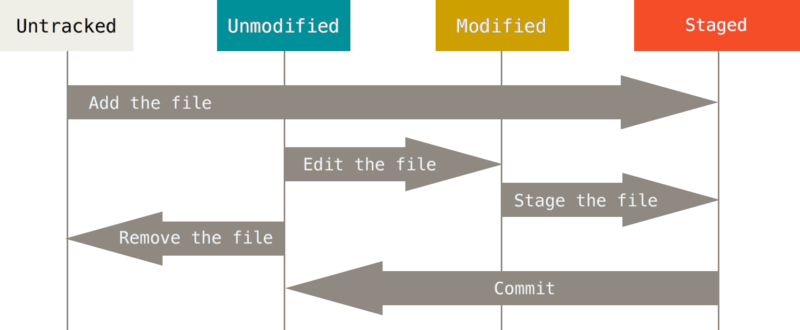
Inspect commited history
1 | git log -n <limit> |
Overwrite commited history
- Overwrite commit message of most recent commit
1
git commit --amend
- Squash several commits into one commit.
- In the interactive window, you can change
pickbefore id tosquashand it will squash it with previous commit. - If both commits modify the same line, then there will be a conflict as git does not know how to resolve it and you need to manually reset HEAD and continue.
1
2
3
4git rebase -i HEAD~3
# When conflicts show up
git rebase --abort
git rebase --continue
- In the interactive window, you can change
- Interactive window will be shown up to let you overwrite history
1
2
3
4
5
6
7
8
9
10
11
12
13
14
15
16
17
18
19
20
21
22
23
24
25pick 13d3039 initial commit for heroku deployment
pick 15f0375 add config.js
pick 5aaddc8 fix typo
pick 58fc7aa update procfile
pick 93d9f86 updates
pick 685cd1d updates
pick 59ca4d4 add built files
# Rebase 6fd4e43..59ca4d4 onto 6fd4e43 (7 command(s))
#
# Commands:
# p, pick = use commit
# r, reword = use commit, but edit the commit message
# e, edit = use commit, but stop for amending
# s, squash = use commit, but meld into previous commit
# f, fixup = like "squash", but discard this commit's log message
# x, exec = run command (the rest of the line) using shell
#
# These lines can be re-ordered; they are executed from top to bottom.
#
# If you remove a line here THAT COMMIT WILL BE LOST.
#
# However, if you remove everything, the rebase will be aborted.
#
# Note that empty commits are commented out - Remove all history of a file containing sensitive data like API keys,
bfgpackage needs to be installed first.1
2
3bfg --delete-files Rakefile
# or
git filter-branch --tree-filter 'rm -f passwords.txt' HEAD - Unstage a staged file
1
2# Reset single file to unstaged
git reset HEAD filename - Combine several commits into one commit
1
2
3
4
5
6# Reset HEAD to previous commit and it shows combined modified files
git reset HEAD~3
# Reset to specific commit by 7-digit ID
git reset 32dfs3e
# Commit all changes from last several commits
git commit -m "commit message"
Push and submit commits
- Push a specific branch to a specific branch in remote
1
2
3git push <remote> <local branch name>:<remote branch to push into>
# Push production branch instead default master branch
git push heroku production:master
Merge and conflicts
- I have troubles when I’m editing codes and colleagues want you to pull and check their code.
git stashcommand will save the current dirty working directory in stack and go back to a clean working directory matching the HEAD commit.
1 | # Save current modifications into stack |
Reset, Revert and Cherry Pick
- git reset - Remove changes in the current commit or several recent commits.
- git revert - When a bug is found in a previous commit and you want to reverse that change as a hot fix and the bug stays in the history until the commit that reverts it. Use
git revert -n (--no-commit) <commit-hash>to automatically generate commit message. - git cherry-pick - In the situation when you and your teammate work on different branches and you need some of the newest code from his branch to work on, you can use git-cherry-pick to pick a commit from him and add it to your HEAD.
Git restore and Git remove
Restore and remove some changes: 1
2
3
4
5# Unstage files
git rm --cached files
git restore --staged files
# Restore the unstaged files that are deleted or modified.
git restore files
Git submodule
1 | # Clone repository and submodules recursively |
If you want to remove a submodule and add a submodule with the same name then there are extra steps to clean the mess: * In file .gitmodules - delete links to submodule (whole section with submodule name) * In file .git/config - delete links to submodule, as in previous step * In folder .git/modules - delete folder with relative path similar to relative path of “problem” module * In folder /<module> - delete the whole initialized submodule folder or use git module deinit
Conclusion
Wow, Git is powerful :)